Google Workspace (formerly G Suite) is one of the most powerful tools available for nonprofits. It offers professional email addresses, cloud storage, collaboration tools like Google Docs, Sheets, Slides, Meet, and much more. The best part? Eligible nonprofit organizations can access the core features of Google Workspace entirely for free under the Google for Nonprofits program.
In this detailed guide, we’ll walk you through everything you need to know from checking eligibility and signing up, to transitioning from a paid Workspace plan to the free nonprofit edition.
Who is Eligible for Google Workspace for Nonprofits?
Before you apply, make sure your organization meets the following key criteria:
- Registered Nonprofit Status: You must be officially registered as a nonprofit organization in your country. In the United States, this typically means having 501(c)(3) status.
- Verified by TechSoup or its Local Partner: Google partners with TechSoup (or local TechSoup affiliates globally) to verify your nonprofit status. You’ll need a TechSoup validation token.
- No Governmental, Educational, or Healthcare Entity: These sectors are not eligible under the Google for Nonprofits program.
Benefits of Google Workspace for Nonprofits
Once approved, you’ll gain access to:
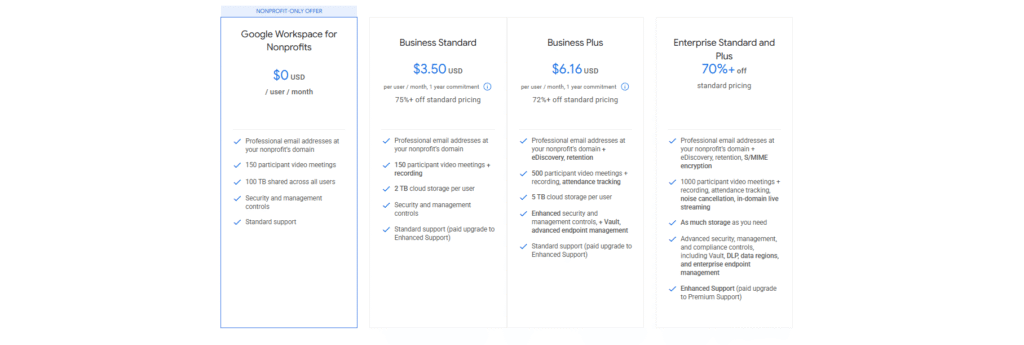
- Gmail with your organization’s domain (e.g., you@yourorg.org)
- 30GB of cloud storage per user (can upgrade for a fee)
- Google Meet video conferencing
- Google Docs, Sheets, Forms, Calendar, and more
- Admin control and security features
Best of all, this is provided at no cost through the Nonprofit edition of Google Workspace.
You can have Business Standard, Business Plus and Enterprise packages on 75% discounted price.
Step-by-Step: How to Claim Google Workspace for Free
Step 1: Register with TechSoup
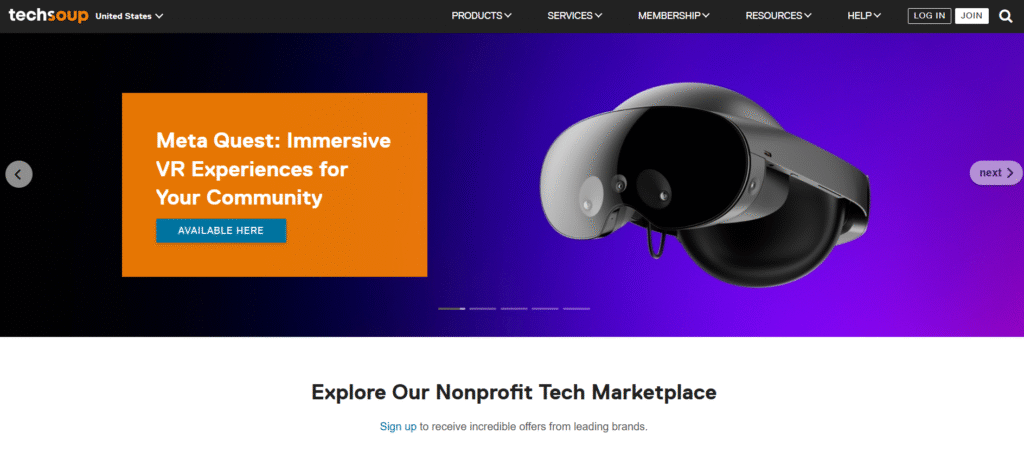
- Go to www.techsoup.org and register your organization.
- After approval, obtain your validation token this will be used to prove your nonprofit status to Google.
Step 2: Sign Up for Google for Nonprofits
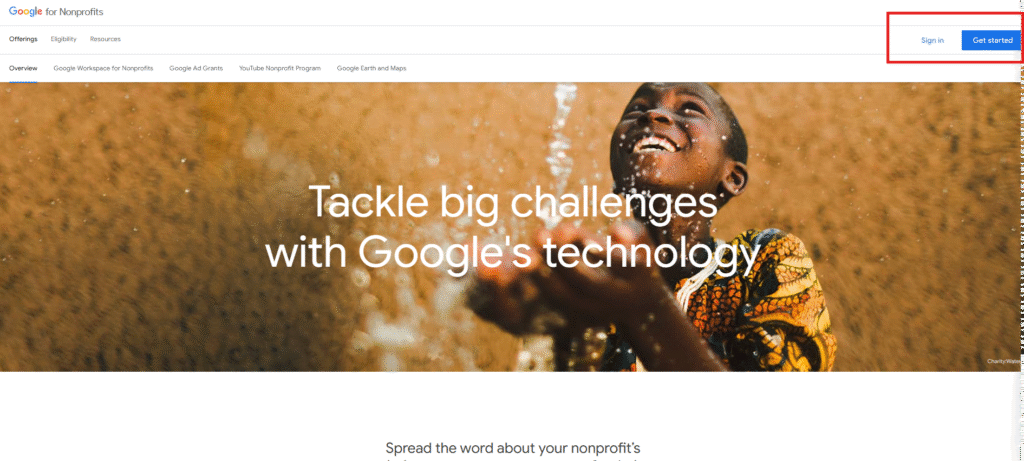
- Visit www.google.com/nonprofits
- Click Get Started and log in with a Google account.
- Submit your TechSoup validation token and fill in your organization’s details.
- Wait for verification. This can take a few days depending on your country and documentation.
Step 3: Activate Google Workspace for Nonprofits
- Once approved, log in to your Google for Nonprofits dashboard.
- Select Activate Google Workspace for Nonprofits.
- Follow the instructions to either:
- Set up a new Workspace domain for your organization.Or, if you already use Google Workspace with your domain, transition your billing to the nonprofit version.
Already Using a Paid Google Workspace Plan? Here’s How to Switch to the Free Nonprofit Plan
If you are currently paying for Google Workspace, you can switch to the free nonprofit edition but it requires a few key steps:
Step 1: Ensure Your Domain is Verified in Google Workspace
- Log in to your Admin Console at admin.google.com
- Ensure your domain is already verified. If not, complete the domain verification process.
Step 2: Apply for Google for Nonprofits
- Go through the process mentioned earlier to register with TechSoup and apply at the Google for Nonprofits site.
Step 3: Migrate to the Nonprofit Edition
- After your nonprofit status is approved and your account is linked, you’ll receive instructions in your Admin Console or via email to transition your current paid plan.
- Navigate to Billing in the Admin Console.
- Cancel your current paid subscription or downgrade to the starter plan, then again upgrade to the desired plan and the discount will be applied. All these steps will be perform at no cost.
- You’ll retain your data and users. This process will not disrupt your existing setup.
Note: Only the standard Google Workspace features are free under the Nonprofit edition. If you are using advanced features like Google Workspace Enterprise or Frontline, those may still have costs.
Tips for a Smooth Transition
- Backup your data before making any billing changes.
- Inform your team of any updates in storage or access levels.
- Consider upgrading to Google Workspace Business Standard or Plus at a discount if your team needs more advanced features Google offers nonprofit discounts on these tiers too.
Common Issues and How to Resolve Them
- TechSoup Validation Delays Solution: Make sure all organizational details match your legal documents. Reach out to TechSoup support if needed.
- Already Have a Workspace Admin? Solution: The Admin account holder must handle the transition. If that person has left, recover admin access using Google’s recovery process.
- Custom Domain Setup Issues Solution: Double-check DNS settings and consult your domain registrar’s help center. Google also offers guided support.
Final Thoughts
Google Workspace for Nonprofits is a valuable resource for any organization looking to increase productivity, streamline communication, and reduce costs. Whether you’re just starting or already on a paid Workspace plan, claiming this benefit can save thousands of dollars annually and unlock premium tools for your team.
If you haven’t applied yet, start by registering with TechSoup. If you’re already paying for Workspace, don’t worry the transition is straightforward and worth it.
Additional Resources
Let your tech work for your mission, not against your budget.